Go to Pupils and press Add pupil to add one pupil, or Import CSV to bring a whole list across from a spreadsheet. Adding a pupil with an email address sends them an invite to their Orbit account straight away. Imported pupils don't get one automatically, so press Send invite on each pupil's page afterwards.
Add one pupil
-
Open Pupils from the menu and press Add pupil.
-
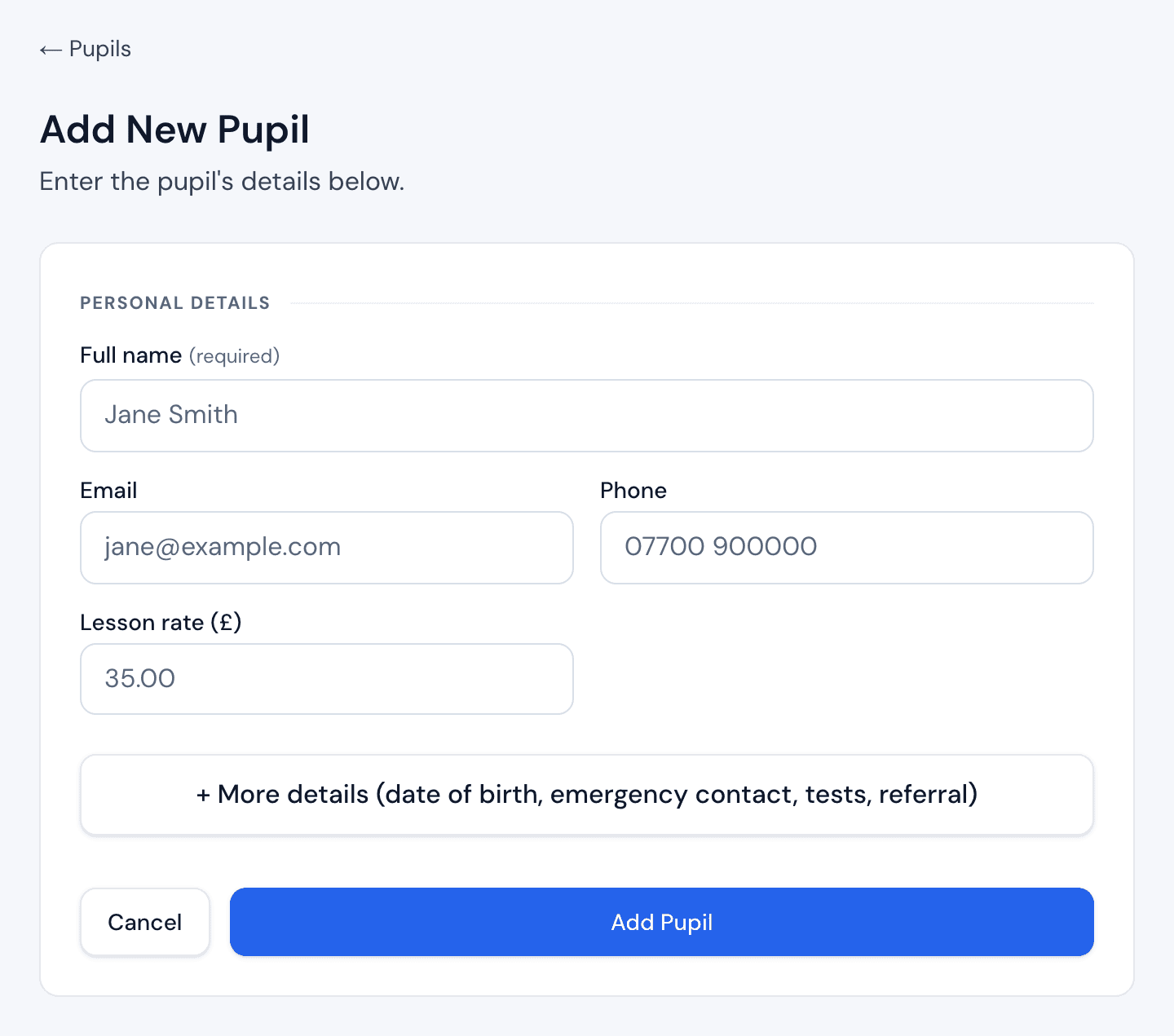
Type their Full name. Email, Phone and Lesson rate are optional, but an email lets Orbit invite them and a phone number lets you call them from the app.
-
Press More details if you want to add their date of birth, licence number, emergency contact, test dates or how they found you. You can add these later too.
-
Press Add Pupil. Orbit opens the new pupil's page.

Import pupils from a CSV
-
On Pupils, press Import CSV. On a phone it's the upload icon next to Add pupil.
-
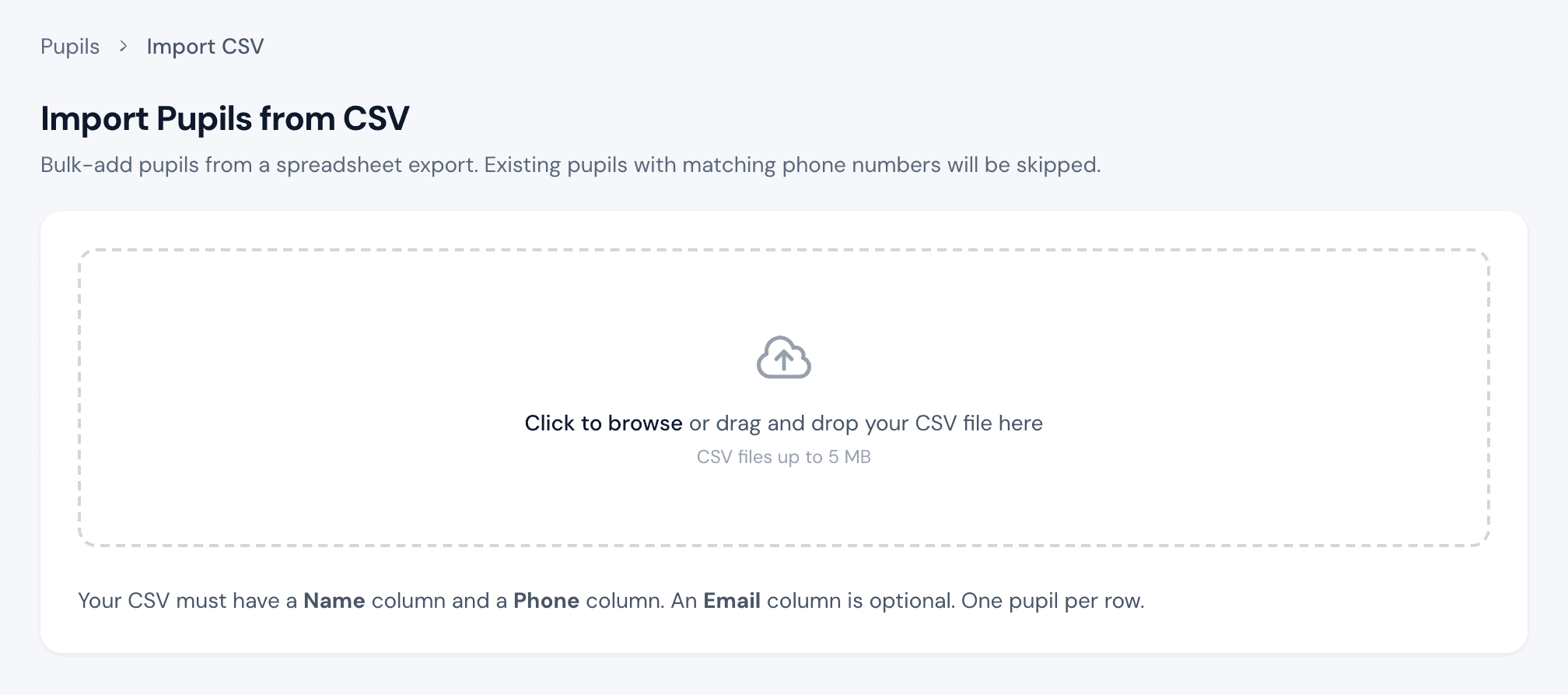
Export your pupil list from your old app or spreadsheet as a CSV file. It needs a Name column. A Phone column is recommended, because it's how Orbit spots pupils you already have, and an Email column is optional. One pupil per row.
-
Drag the file onto the upload area, or press Click to browse and choose it.
-
Check the Preview. Rows with a phone number that's already in Orbit, or repeated in the file, are skipped.
-
Press Import 12 pupils (the number is how many will be added), then Go to Pupils.
-
Open each imported pupil who has an email address and press Send invite under Pupil account.
What happens next
A pupil you add with an email gets an invite to set a password and sign in to their learner account. There they can see their lessons, pay, and tell you when they can drive. Their page in Orbit shows whether the invite was sent and when they set up their account. You can now book them into your diary.
If something goes wrong
- The import says rows were skipped. Those pupils were already in Orbit with the same phone number, or the number appeared twice in your file. Nothing else was changed.
- A pupil says the invite never arrived. Check the email address on their page, then press Resend invite.
- Moving from Total Drive? Use Settings → Import data and choose Total Drive export: it brings your lessons across too. See the switch guide.