Go to Money, open the Mileage tab and press Log Mileage. Enter the miles, the date and an optional note, then save. If the journey was for a lesson, pick the lesson and Orbit can estimate the miles for you. Your total for the tax year shows at the top of the page.
Log a journey
-
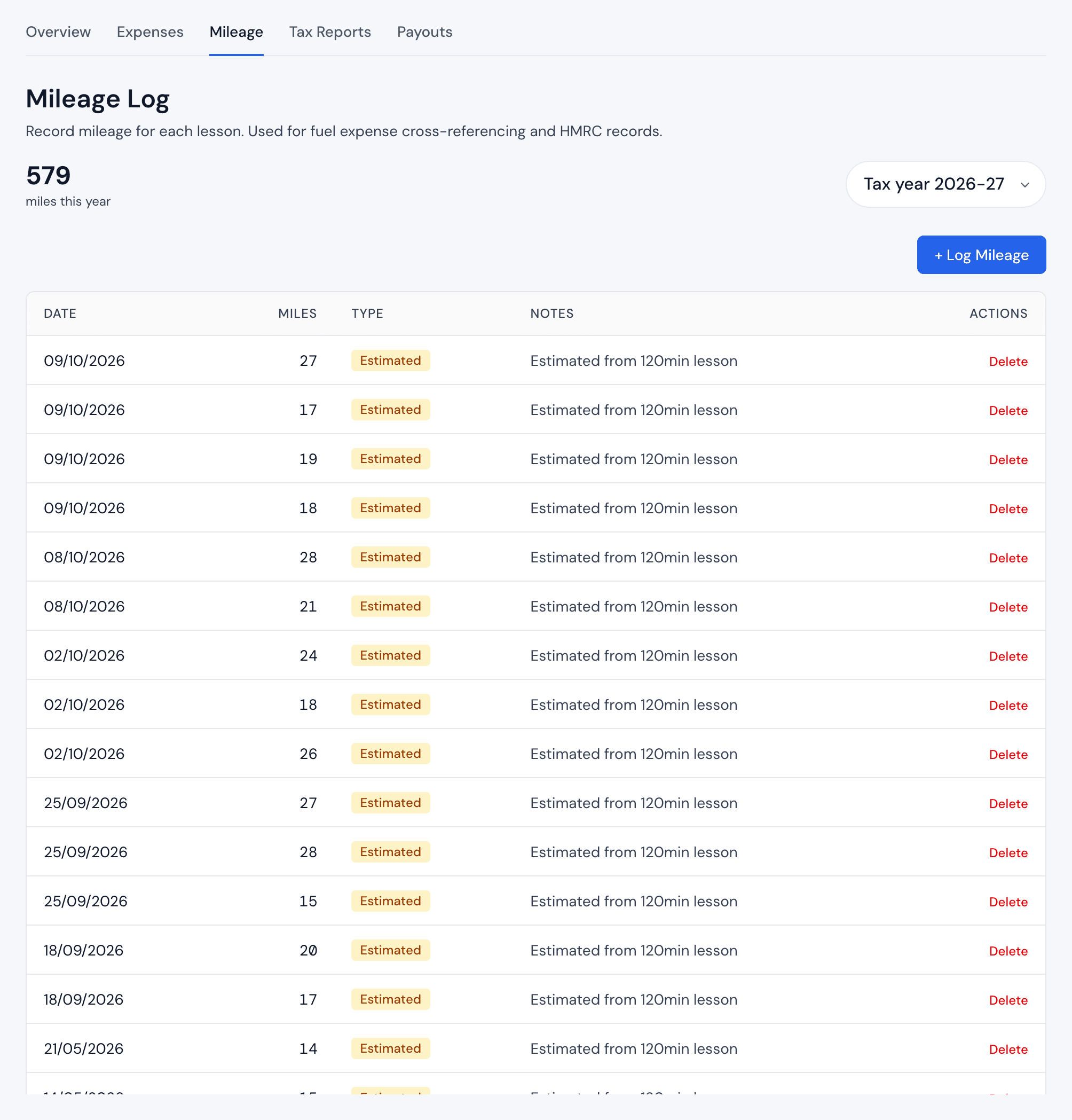
Open Money from the menu, then the Mileage tab. The page shows your miles this year and every journey you've logged.
-
Press Log Mileage.
-
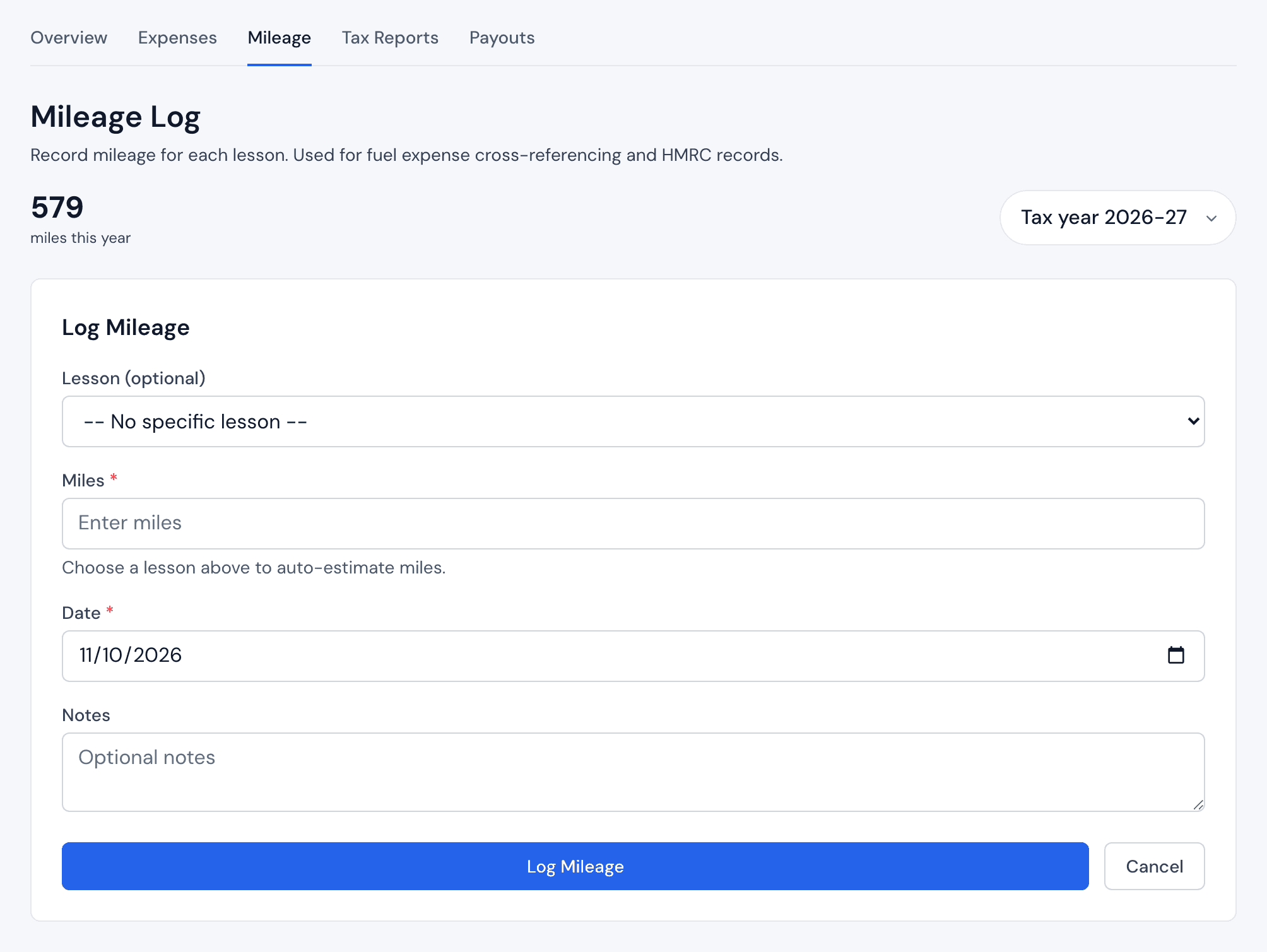
Under Lesson (optional), pick the lesson the journey was for, or leave it on No specific lesson for other work trips, like fuel runs or a CPD course.
-
Type the Miles. If you picked a lesson, you can press Auto-estimate instead.
-
Check the Date. It starts on today.
-
Add Notes if they help you later, such as where you drove.
-
Press Log Mileage to save the journey.

How the estimate works
Auto-estimate works out a rough figure from the lesson's length, assuming an average speed and a round trip. It needs a postcode on the pupil's page. It is a guide, not a measured route. The Miles field shows Estimated until you change it, and the journey keeps an Estimated tag in your log. Change the number if you know the real distance.
What happens next
Each journey appears in your log, newest first, and adds to your total for the tax year. Use the tax year picker to see an earlier year. Your mileage log is the record HMRC asks for if they check your return, so keep it up to date as you go.
How you claim car costs is your choice. HMRC's flat mileage rate doesn't apply to a dual-control car, so most instructors claim their actual car costs and use the log to work out the business share. Read what driving instructors can claim and HMRC's guidance on vehicle expenses.
If something goes wrong
- There's no Auto-estimate button. Pick a lesson first. A lesson with no pupil can't be estimated, so type the miles yourself.
- The estimate says the pupil has no postcode. Add their postcode on their page in Pupils, then try again.
- There's no Log Mileage button. That tax year has been filed with HMRC, so its records are locked. Pick the current tax year.
- You logged a journey by mistake. Press Delete next to it in the log.