Open your learner dashboard and tap When can you drive?. Tap the mornings, afternoons and evenings you're usually free, add a note if you need to, and press Save availability. Your instructor sees it straight away when they plan your lessons.
Set your availability
-
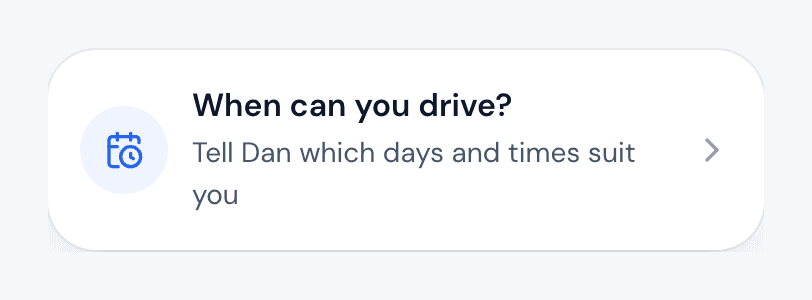
Sign in to your learner account. On Home, tap the When can you drive? card. You can also find it under Account (on a phone, tap your initial at the top right), as Your availability.
-
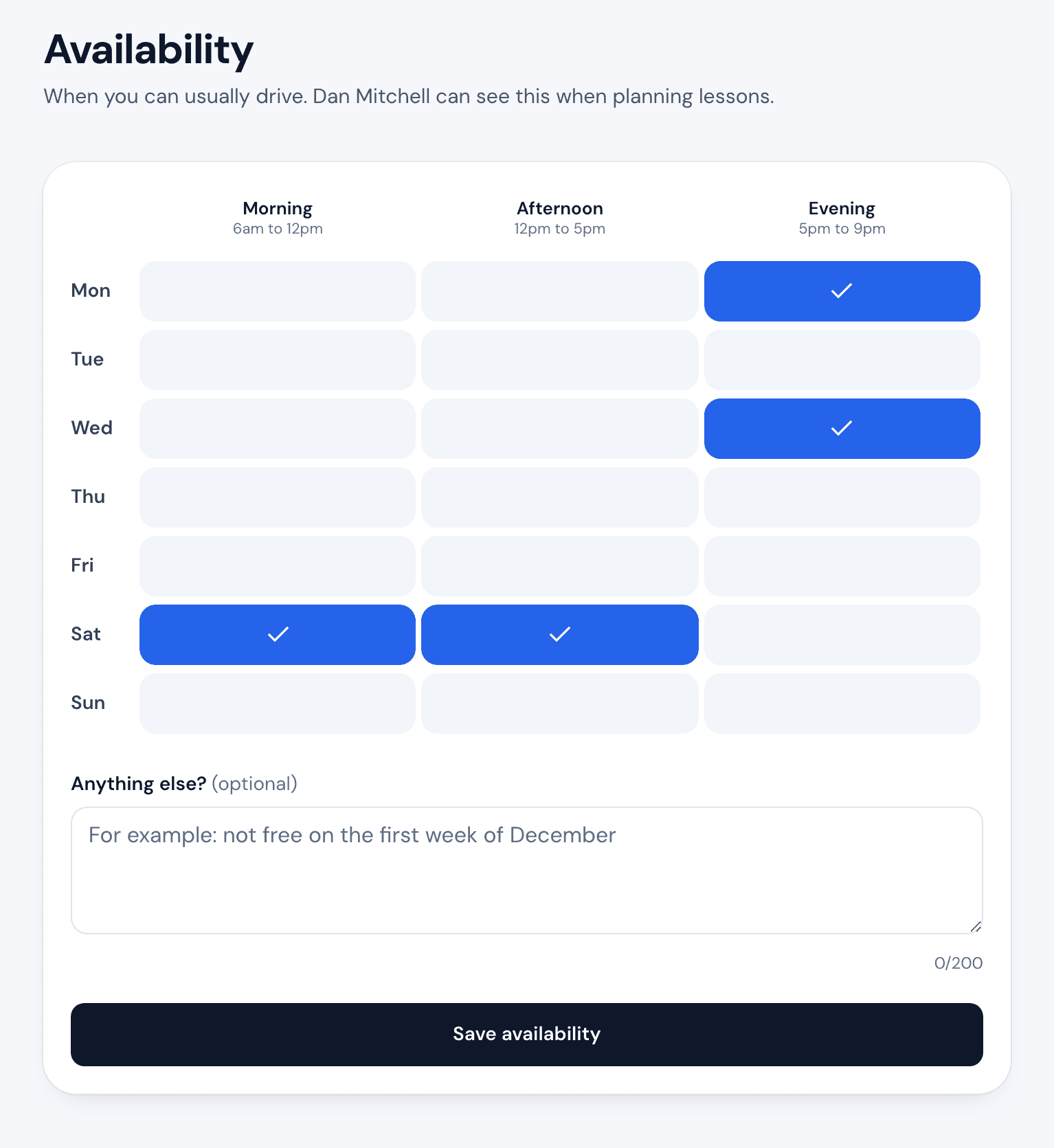
Each day has three buttons: Morning, Afternoon and Evening. The times for each one are shown at the top of its column.
-
Tap every slot you're usually free. A ticked slot means you can drive then. Tap it again to clear it.
-
Use Anything else? for things the grid can't show, like a week you're away or a day you finish college early. It takes up to 200 characters.
-
Press Save availability. You'll see "Saved. Your instructor can see this now."

What happens next
Your instructor sees your free times on your page in their Orbit app, with when you last updated them. They use it to offer you lesson times that suit you, so keep it current when your work, college or school timetable changes.
Saving your availability doesn't book a lesson by itself. It tells your instructor when to offer you one.
If something goes wrong
- The page says "No instructor yet". Your availability is shared with your instructor, so you can only set it once an instructor has added you. Ask them to add you with the email address you signed up with.
- You can't find the card on Home. It only shows once an instructor has added you and you've accepted their invite email.
- Saving shows an error. Try again.
- You have more than one instructor. They all see the same availability. If a new instructor adds you, press Save availability again so they see it too.